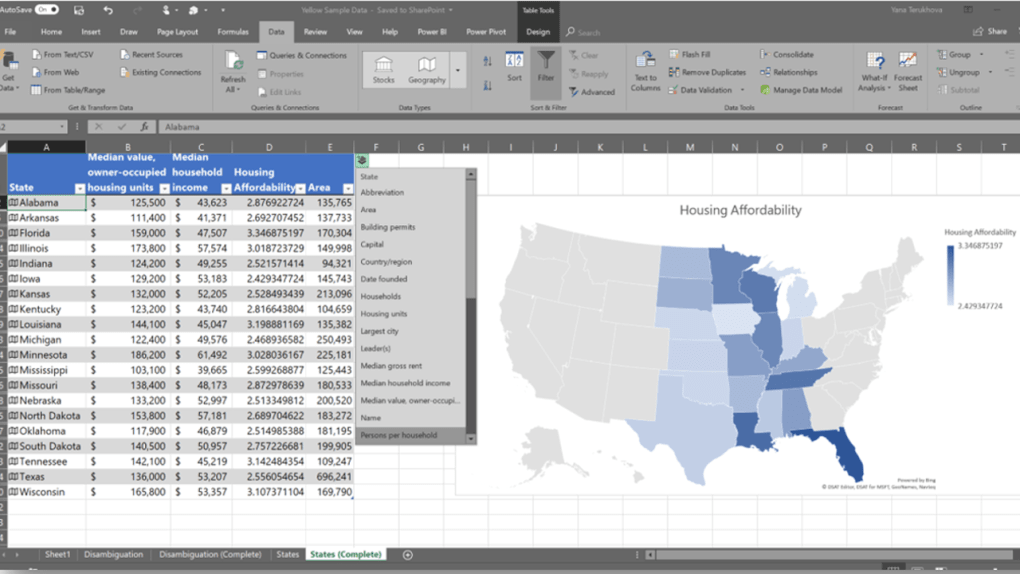



Download Microsoft 365 – Cloud‑Based Office Suite for Windows, Mac, Android & iOS
Overview
Microsoft 365 is a subscription‑driven ecosystem that brings the classic Office productivity tools together with modern cloud services, collaboration platforms, and intelligent AI features. Whether you are a student, a home user, a small‑business owner, or part of a large enterprise, the suite adapts to your workflow by offering familiar applications like Word, Excel, PowerPoint, and Outlook alongside cloud‑first solutions such as OneDrive, Teams, SharePoint, and Planner. The subscription model guarantees you always run the latest version, eliminates the need for costly upgrades, and provides 1 TB of personal cloud storage per user (or more for business plans). Because the service is tightly integrated with Microsoft’s security stack, you also benefit from built‑in protection against malware, ransomware, and phishing attacks. The flexibility to install on up to five devices per user—including Windows PCs, macOS computers, Android phones, and iOS tablets—means you can stay productive wherever you are, without juggling multiple licenses.
- Full desktop versions of Word, Excel, PowerPoint, Outlook, Publisher, and Access
- Real‑time collaboration with OneDrive and Microsoft Teams
- 1 TB cloud storage per user (Business plans include shared storage)
- AI‑powered assistance through Microsoft Editor and Copilot (preview)
- Secure email with Exchange Online Protection
- Cross‑platform apps for Windows, macOS, Android, and iOS
- Enterprise‑grade security: Defender for Office 365, Azure AD, Intune
- Regular feature updates at no extra cost
- Flexible subscription tiers for personal, family, business, and education
- Integrated video conferencing and chat via Microsoft Teams
Installation & Usage Instructions
Getting Microsoft 365 up and running is designed to be as frictionless as possible. Start by visiting the official Microsoft 365 download page and signing in with your Microsoft account. Choose the appropriate subscription tier—Personal, Family, Business Basic, Business Standard, or Business Premium—and click “Install.” The installer automatically detects your operating system and downloads the correct package for Windows, macOS, Android, or iOS.
Step‑by‑step for macOS:
- Ensure your Mac is running macOS 10.12 Sierra or later.
- Download the Microsoft_Office_Installer.pkg file from the portal.
- Open the .pkg file and follow the guided prompts (agree to the license, select the destination drive).
- Enter your Microsoft account credentials when prompted; this activates the subscription.
- After installation, launch any Office app (e.g., Word) and sign in again to sync your OneDrive files.
For Windows, the process mirrors macOS: run the .exe installer, accept the terms, and sign in. Mobile devices use the App Store (iOS) or Google Play (Android) to install the dedicated Microsoft 365 apps. Once installed, you can enable Auto‑Save in any Office document, allowing real‑time changes to be stored in OneDrive.
Collaboration works instantly—open a shared file, edit, and watch teammates’ cursors appear in real time. Teams integrates chat, voice, and screen sharing, turning a single document into a live workshop. The intuitive UI ensures that even users new to the cloud can start collaborating within minutes.
Compatibility & System Requirements
Microsoft 365 is engineered for maximum compatibility across the major platforms. For desktop use, the suite supports:
- Windows 10, version 1903 or later, and Windows 11 (both 64‑bit)
- macOS 10.12 Sierra or later (including Apple Silicon via Rosetta 2)
- iOS 13 or later on iPhone, iPad, and iPod touch
- Android 8.0 Oreo or later on smartphones and tablets
Cloud services such as OneDrive, Teams, and SharePoint are accessed through a web browser, meaning you can also work from Linux, Chrome OS, or any device with a modern browser (Edge, Chrome, Firefox, Safari). Microsoft recommends keeping your operating system up to date to benefit from the latest security patches and performance enhancements. Minimum hardware requirements include a 1 GHz processor, 4 GB RAM (8 GB for optimal performance on Windows/macOS), and at least 4 GB of free disk space for the core apps. For a smooth Teams experience, a webcam, microphone, and a stable broadband connection (minimum 1 Mbps upload/download) are advisable.
Pros, Cons, FAQ & Conclusion
Pros
- Always‑up‑to‑date desktop applications without extra upgrade fees.
- Robust cloud storage and real‑time collaboration across devices.
- Comprehensive security suite built into the subscription.
- Flexible licensing for individuals, families, businesses, and schools.
- AI‑driven writing and data insights begin to appear in newer plans.
Cons
- Subscription cost can add up over time compared to a one‑time purchase.
- Full feature set requires an internet connection for activation and sync.
- Learning curve for advanced collaboration tools like Teams and SharePoint.
- Some legacy features (e.g., Access) are Windows‑only.
- Enterprise plans may be overkill for casual home users.
Frequently Asked Questions
Can I use Microsoft 365 on multiple devices simultaneously?
Yes. A single Microsoft 365 Personal subscription lets you install the apps on up to five devices, while the Family plan supports up to six users, each with five devices.
Is there a free version of Microsoft 365?
Microsoft offers a 30‑day free trial for most paid plans. Additionally, many schools and workplaces provide Microsoft 365 at no extra cost to students and employees.
What happens to my files if I cancel my subscription?
Your files remain stored in OneDrive, but you lose editing capabilities after a grace period (usually 30 days). It’s recommended to back up important documents before canceling.
Does Microsoft 365 include antivirus protection?
Business Premium and Enterprise plans bundle Defender for Office 365, which scans email and attachments for malware and phishing attempts. Home plans rely on Windows Defender or macOS security tools.
Can I downgrade or switch plans after purchasing?
Yes. Microsoft allows you to change subscription tiers at any time from the admin portal or account settings. Billing adjusts on the next renewal cycle.
Conclusion & Call to Action
Microsoft 365 stands out as a versatile, cloud‑centric productivity suite that blends familiar desktop experiences with modern collaboration tools. Its strength lies in the seamless integration of Office apps, 1 TB of cloud storage, and enterprise‑grade security—all delivered through a flexible subscription model. While the recurring cost may deter users accustomed to one‑time purchases, the continuous updates, AI enhancements, and cross‑device freedom often justify the expense for professionals and families alike.
Ready to experience the future of work? Download Microsoft 365 today, choose the plan that matches your needs, and unlock the full power of Office on every device you own. Stay productive, stay secure, and stay connected—anytime, anywhere.